Demo browser
The Demo Browser

While this document explains using the Demo Browser with the PySimpleGUI Demo Programs, the program can be used to search, edit and run programs from any folder tree on your system.
It's not limited to PySimpleGUI Demo Programs. It's not even limited to Python files as there is an option to "Show ALL file types" so that any files can be searched.
There are 3 tasks that the Demo Browser performs:
- Finding files - by searching the filename or the contents of files
- Editing files - launches your editor, opening the chosen files
- Executing files - Run one or more files
Setup the Demo Browser
To change the settings:
- Click the "Settings" button
Click the "Settings" button. You'll see a window like this one:

I've changed the theme to be "DarkGrey13" and checked "Use Advanced Interface". I know a number of users like "Dark Themes" so let's use a "dark grey 13" theme for this recipe and enable the advanced features.
After clicking OK the window changes to:

More Details on Settings
- Fill in the input fields labeled Path to Demos and Editor Program
- Path to Demos - Defaults to the location of the Demo when you run it the first time. You can leave unchanged if this program is going to remain with the other demos. Use an absolute path.
- Editor Program - If you want to be able to use the "Edit" button in this browser to open and edit the demo programs, then fill in the name of the .EXE (for windows) of your editor/IDE. If you have set up an editor in the global settings for PySimpleGUI, then you don't need to set up an editor in the browser demo.
- PyCharm
- Windows - it's not an EXE but a batch file. It will look something like this:
C:\Program Files\JetBrains\PyCharm Community Edition 2020.3\bin\pycharm.bat - Linux - it's a bit trickier. It may resemble something like this:
/home/mike/.local/share/JetBrains/Toolbox/apps/PyCharm-C/ch-0/202.8194.15/bin/pycharm.sh - Mac - I dunno yet.... there's an open Issue on GitHub asking for help from Mac user
- Windows - it's not an EXE but a batch file. It will look something like this:
- Notepad++
- Windows - Something along the lines of
C:\Program Files\NotePad++\notepad++.exe
- Windows - Something along the lines of
- Notepad
- Windows -
c:\windows\notepad - Linux -
/usr/bin/notepad
- Windows -
- Custom
- Assuming your editor is invoked using "editor filename" when you can use any editor you wish by filling in the "Editor Program" field with a path to the editor executable
- PyCharm
NOTE - if you want to be able to use the Edit button to open to a specific line number, then you will need to setup the editor in the PySimpleGUI Global Settings. You can access the PySimpleGUI Global Settings from Home Window by calling sg.main(). There is a button labelled "Global Settings". There is already a lot of duplication of settings happening between this browser and the PySimpleGUI global settings. Once you've got the global settings made, then you don't need to make any chnages to the seettings in the browser program. You can leave them all blank and the settings will come from the PySimpleGUI global settings.
Window Sections
These are some of the important part of the window that are not as obvious as other parts.

Verbose Mode
Verbose mode will show you the full matching line from the file. This is handy for when you're looking for a specific way something is used.
By default the Verbose mode is turned off. This is because search results are updated in realtime as you type characters. If your project tree is large then your verbose output will be very very large as you type the first few characters of your search.
The best way to use the Verbose feature is to perform the search with it turned off. Once you get the list of files from your search, then click verbose to see the more detailed view of the results.
In this example, I've searched for the demos that use the Graph element. Searching for "sg.Image(" will return the demos that make this element.

If I then uncheck the "Show only first match in file" then I can see when multiple matches are found in a file.

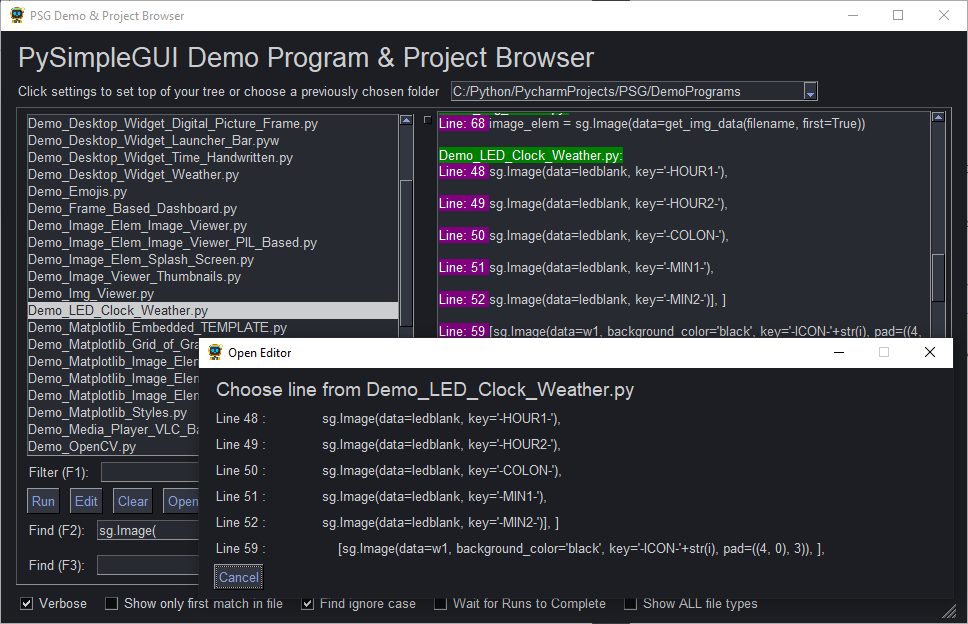
In verbose mode and all matches are shown, when a file is selected from the list and the "Edit" button is clicked, then another window will show you the list of lines that matched and allows you to click on the line to be taken to. Selecting a line will open your editor to that line.
"Open Folder" feature
If you have an explorer program specified in the settings or in the PySimpleGUI Global Settings, then choosing a file and clocking the "Open Folder" button will launch the file browser that you've specified and open the folder that the file is contained in.
Show All file types
You can use the Demo Browser to search not only your own projects, but you can also use it to search file types other than .py and .pyw. Check the Show ALL File Types checkbox at the bottom of the window to enable all files to be displayed and searched.
